
red7 communications, inc.
—We work backstage so you can be the star

Welcome to Red7 email You have received a separate welcome email message containing your account name and a temporary password. Please refer to that note when setting up your account.
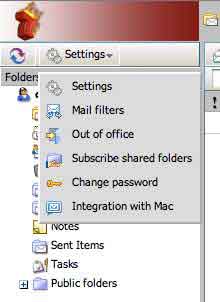 To initially set up your account and select a password: We provide a web interface where you can send and receive mail, change your password, and create super-powerful spam-filtering rules (when necessary). Log in at https://base.red7.com/ using your account name and your temporary password.
On that page, please look for Settings (see illustration), click to pop up the menu, and please change your password to something you can remember, but a hacker won’t be able to figure out (don’t use your dog’s name or your address!). You know the routine.
If you’re a Macintosh user, there are some tips on the Integration with Mac page that will help you set up mail, calendars, and your iPhone.
Also take note that if you ever want to set up an out of office or a vacation message, this is the place where to do it.
There’s a Junk E-mail folder on your page where you can search for messages that may have accidentally ended up being classified as junk. The system will purge your junk mail after 30 days, so if you’re going ot check your junk mail, do it frequently.
Your email software: Most people keep their email on their computer. Please set up your email program to send and receive email as follows:
POP3 server (receiving mail): base.red7.com
(Use secure SSL on port 995.)
SMTP server (sending mail): base.red7.com
(Turn on secure SSL and useport 465.)
Account: (use the full email address we gave you, including the domain name)
Password: (use the new password you set up - see above). If you have a choice of authentication methods use “plain” or “Password” because your connection is already secured by SSL.
Password authentication is required by the server!
Security: Please use SSL or select ”secure connection” for both sending and receiving—see above for port numbers, though most email programs will figure them out for you.
If you prefer to use the server as if it were an Exchange Server you may do so. This also applies to iPhone users. One of the features you get is that the server will alert you upon the arrival of new mail. It also provides synchronization of your Outlook/Exchange contacts and calendars.
For your reference, the email server is a Kerio mail server, and you can find online documentation at the Kerio web site under the End-User tab (!). We also have a local copy of the document.
Gmail users: You can set up gmail to send and receive mail using your Red7-supplied email account. The process changes over time, so please log in at gmail.com and look for Settings and then the Accounts tab where you can configure gmail to send and receive using your Red7 account.